1. Service Creation & Design
Build the core offerings of your nutritional practice.
1
Open Services
Navigate to Programmes → Services from the main menu.
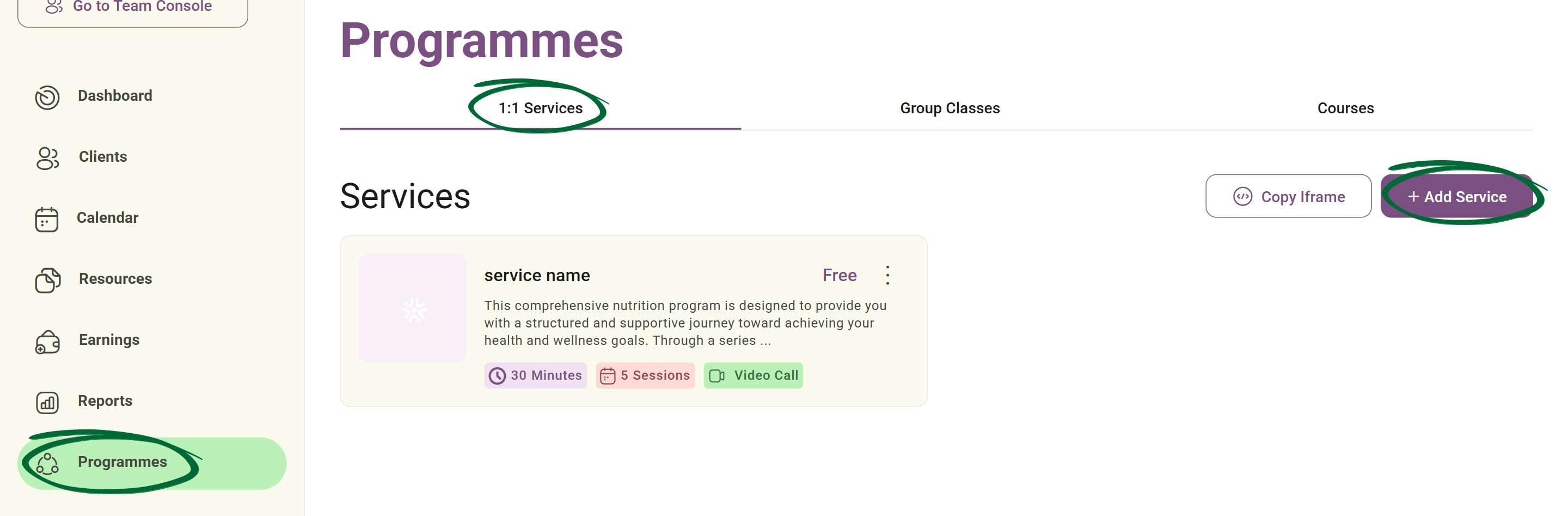
2
Create New Service
Select the type of service (e.g., 1-to-1, Group, or Course).
3
Design Page
Add a title, professional description, and set your pricing.
4
Link Resources
Attach specific intake forms or automated documents to the service.
5
Preview Design
Use the "Service Preview" feature to review your page layout before it goes live.
Tip: Use a high-quality cover image in your Service Page Design to make your offerings more visually appealing and professional to prospective clients.
2. Embedding & Sharing
Promote your services by integrating them into your existing web presence.
1
Go to Embed & Share
Locate the sharing tool within the specific service settings.
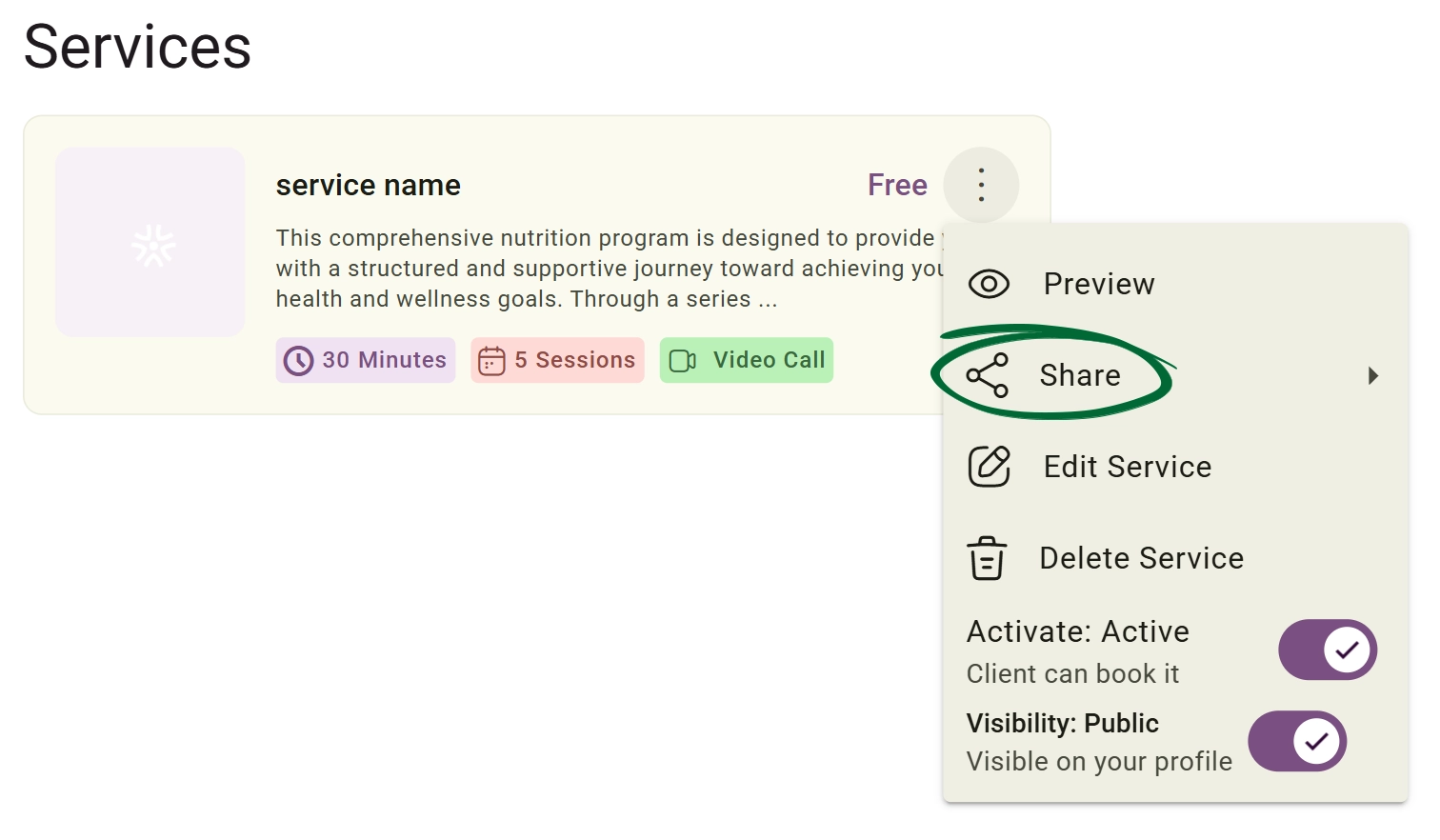
2
Generate Link
Copy the direct URL for use in social media bios or email signatures.
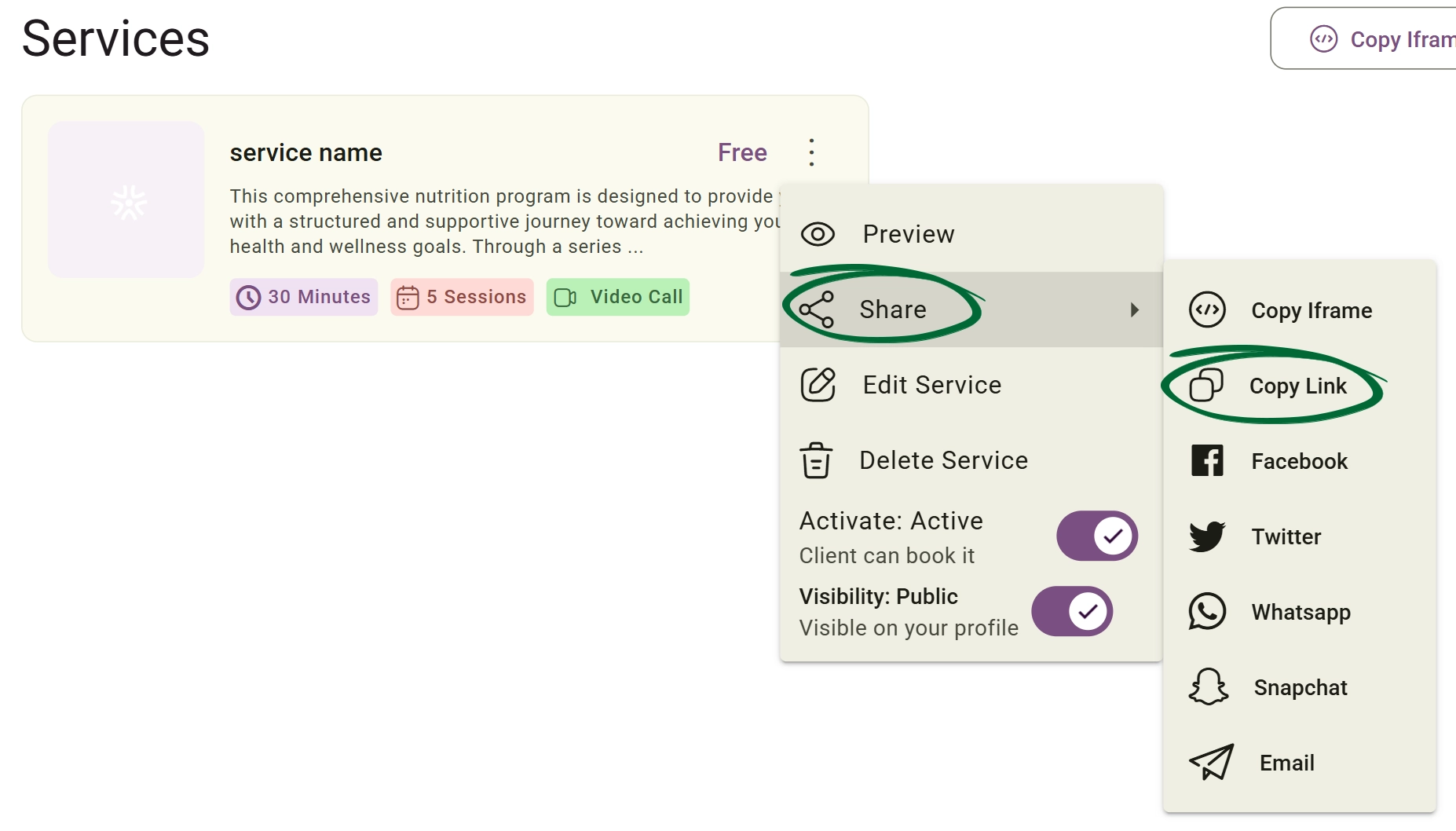
3
Get Embed Code
Copy the iframe code to integrate the booking calendar directly into your personal website.
4
Customise View
Adjust the width and height parameters to fit your website's layout.
Tip: Embed your most popular service on your website's homepage to convert visitors into clients instantly.
Frequently Asked Questions (FAQs)
Can I create a service that doesn't show a price publicly?
Yes. In the service settings, you can toggle the "Display Price" option off. This allows clients to book or inquire without seeing a fixed fee upfront.
Can I link different intake forms to different services?
Absolutely. You can assign specific forms to specific services so that a "Discovery Call" triggers a short lead form, while an "Initial Consultation" triggers a full clinical intake questionnaire.
Is there a limit to how many services I can have live at once?
There is no hard limit on the number of services you can create, but we recommend grouping them into categories if your list becomes long to ensure a better user experience for your clients.
Troubleshooting & Common Issues
Issue: Service not appearing on booking page
Potential Solution: Check that the service status is set to "Active" and that you have linked at least one available calendar slot to it in your availability settings.
Issue: Changing the order of services
Potential Solution: Use the drag-and-drop handles in the main "Services" list to re-prioritise how they appear to clients on your public page.
Issue: Embedded calendar cut off on mobile
Potential Solution: Ensure your website's container is set to "Responsive." You may need to manually adjust the height pixel value in the provided iframe embed code.
Issue: Link says "Service Unavailable"
Potential Solution: This usually occurs if a group programme has reached maximum capacity or if the pre-set expiry date for the link has passed.
Next Step
Your offerings are live! To see how these look from your client's perspective, visit the Client Experience (Nurish Life App) guide.
Go to Client ExperienceContact Support
Still need a hand?
Email Support: [email protected]